


Windows 10 has had a surprisingly high adoption rate despite the criticism of its major changes.
However, the operating system still has some issues, namely that its default settings mean you are served adverts on your menus and lock screens.
From the annoying suggested app tiles in the Start Menu to the pre-installed bloatware bundled with the OS, here is everything you need to know about cleaning up your Windows 10 interface:
Suggested Apps
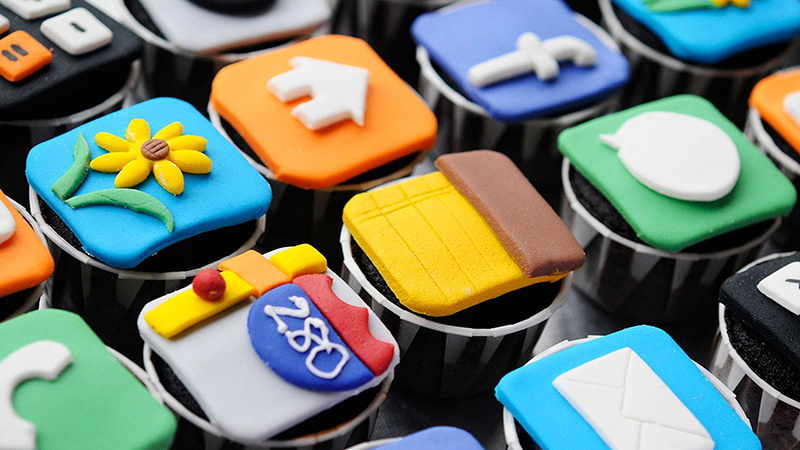
The Windows 10 Start Menu regularly displays suggested apps, which can anything from free programs to games that can cost over R1,000 from the Windows Store.
To disable suggested apps, go to Settings > Personalisation > Start and set the “Occasionally show suggestions in Start” option to “Off”.
Lock Screen
If you’re seeing adverts on your lock screen, Windows Spotlight is enabled in your Personalisation settings.
Windows Spotlight automatically pushes ads to your lock screen, including new and popular software on the Windows Store.
To disable Spotlight, go to Settings > Personalisation > Lock Screen and change the background setting from “Windows spotlight” to either “Picture” or “Slideshow”.

Pre-Installed Apps
This is not the end of Windows Store integration however, as apps like Candy Crash Saga and Flipboard are automatically downloaded and installed with Windows 10, and have to be uninstalled manually.
The best way to uninstall all of these apps is to locate them in the Apps directory under the Start menu and right-click app titles to bring up an Uninstall option.
This Uninstall option also works on the “Get Office” which is a permanent advertisement for Office. You can also get rid off “Get Office” notifications by navigating to Settings > System > Notifications & Actions and turning the Get Office notifications to “Off”.

Cortana and Tips
Windows 10 features “helpful” tips which can often suggest downloading or using different apps and services from the Windows Store or using Microsoft Edge over another browser.
To disable these tips, go to Settings > System > Notifications & Actions and turn off the “Get tips, tricks, and suggestions as you use Windows” setting.
Additionally, if you have enabled Cortana, she may occasionally attempt to grab your attention in different ways.
You can disable this behaviour by turning off “Taskbar Tidbits” in Cortana’s settings.






 Loading ...

I had a fist fight with windows 10 when first installing it. I found the store would redownload candy crush and others after uninstalling them. End result, I completely removed the store and all the ads, and was able to reduce the start menu width by half..
I’d recommend 10se1ucgo/DisableWinTracking from github to assist removing the store items and block the telemetry.
Win10 is quite decent once you castrate the bollocks from it