



While writing my first collection of tips and tricks to unlocking the potential of your PS4 or Xbox One, I discovered a few more worth sharing, so that’s exactly what I’ll do.
Use you console to power up your TV

It’s not a difficult process at all.
Did you know that you might never have to reach for that TV remote or even get out of your chair ever again? The PlayStation 4 and Xbox One offer a TV-Link feature that allows you to switch on your TV when you boot up your console.
PS4
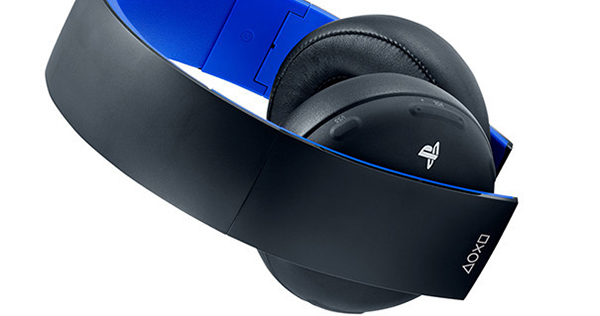
The best way to keep your family and ears satisfied at the same time is invest in a better headset.
The PlayStation 4 is more specific in this regard as it needs to be linked to a Bravia TV for this feature to work, whereas the Xbox One can use any TV.
Simply go into settings on the PS4 and look for “Enable HDMI Device Link” in order for the PS4 to do its thing.
What is even better about this link is that once it’s done you can actually use your TV remote to control the PlayStation 4’s UI, assuming you have a Bravia TV that is.
As for the Xbox One, go into My Games and Apps > Settings > TV and OneGuide > Devices > and follow the setup to send a signal through the HDMI port to your TV. Once this has been done, you can now turn off and on your TV with your console.
Play in private (PS4)
Say you have non-gamer roommates or family members who can’t appreciate the need for video games to be played on full volume – it’s all about the atmosphere after all. Well, thanks to the PS4’s standard 3.5mm headphone jack support, you can direct all of the game’s sound to your headset.
Just hold down the PS Button with your headphones or headset plugged in and choose “adjust devices > output to headphones”. All in-game sounds will now ignore your superior sound system and go directly through your measly headphones, and all because you love your family – love is overrated if you ask us.
Use the PS Vita as another controller (PS4)
We all know that you can use your PS Vita as an additional controller for your PS4, but just how do you do it?
All you have to do is log into your PS4 using a DualShock 4 controller, then connect your PS Vita via “Remote Play”. The PS4 will then disconnect the DualShock 4 and you’ll be able to sign in again with it as another user. Even if you don’t play any games on your PS Vita, it’s a great DualShock 4, even if it doesn’t vibrate.
Save your videos (PS4)
There are those of us under the illusion that people watch what we upload; we know better. Still, you may well find a reason to upload your gameplay and here’s how.
The PlayStation 4 automatically records 15 minutes of gameplay to your hard drive at a time, and all you need do to save your past 15 minutes is to press and hold the Share button (depending on your settings it could be one tap), when the share screen appears. Following that, simply press triangle and your clip will be saved.
Awesome-fy Your Saved Clips (PS4)
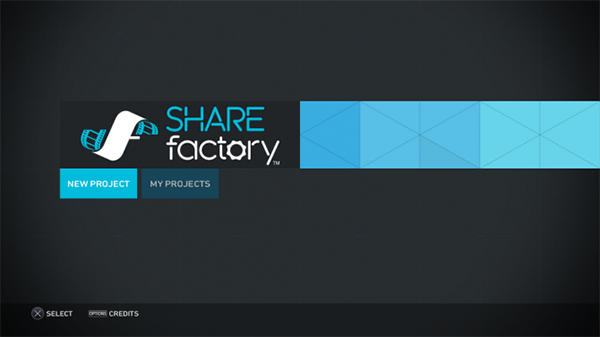
Share Factory is a fantastic app for a feature very few of us will ever use.
If you want to make your video clip look like a Hollywood movie, then we recommend Share Factory.
With Share Factory, you can use custom skins to add an intro to your clip, edit your clip, add music via a USB, and even throw in a little provocative commentary. Once you are happy with your results, you can upload your masterpiece to YouTube and wherever else you fancy.
Record Game Clips using the SmartGlass App (Xbox One)
SmartGlass is actually quite the app these days.
The SmartGlass App might have lacked features when the console launched back in 2013, but ever since then, the app has received a few features that really make it a worthwhile download.
One of these noteworthy features is the ability to record gameplay clips straight from your phone or tablet. Simply connect the app to the console by heading to My games and Apps > Settings > Preferences and go head on into the SmartGlass Connections to get your phone setup.
Once you have linked your phone to your console, your phone will begin to give you information on what you are playing. Tapping on the “Record That” prompt will save the last couple of minutes to your Xbox One.
Know when your console is actually off (Xbox One)

It’s weighty, but it has its uses.
I was pretty surprised that even industry professionals have no clue as to when their console is actually off or on standby. When I attended a launch awhile back, I informed the Xbox representative that unplugging the console could actually damage it because it was not fully switched off, and he had no idea how to tell the difference.
When you look at your Xbox One’s power brick, the orange light indicates that the console is off and ready to be unplugged. This is achieved by holding down the power button on your console for 10 seconds. The light will turn from white to orange. In this mode, no automatic downloads will occur, nor will the console respond to your voice. Once the light has turned orange, it’s safe to unplug.
Touching the power button for a brief moment will put the console in standby mode, allowing it to switch on faster, respond to your voice and download game updates. Try not to unplug your console when this is light is on.





 Loading ...

Surely this is general knowledge for anyone that owns either.