

DarthMol
New member
Have you tried overclocking your monitor? I must admit I'd never thought this was something that was possible, what does it even mean to "overclock" your monitor?
It simply means to up your monitor's refresh beyond it's default setting (for most standard monitors that 60Hz). These days you can pick up specialised gaming monitors that are rated for 120Hz or 144Hz but they are quite pricey to say the least. With monitor overclocking you can give your current monitor a bit of a boost.
Since I had seen guys mentioning overclocking their monitors (particularly on Carbonite) I thought I may as well give it a try. I recently bought a (3rd hand) Samsung S27B550 from a friend and some diagnostic or other (can't remember what) should my monitor to be capable of 75hz, so I figured I'd give it a go.
I came across this helpful article: https://www.maketecheasier.com/overclock-pc-monitor/
Also, it's good to note the disclaimer on that webpage:
So I installed the patch for the AMD drivers and the CRU (Custom Resolution Utility) following the instructions and sure enough I managed to bump my refresh rate up from 60Hz to 70Hz - all seemed to be fine. While fiddling around I actually saw that with Radeon Settings it's even simpler to bump up the refresh rate, I may not even have needed to install the patch and CRU (although I think the patch helped ensure the cable bandwidth was unlocked - I'm using HDMI).
How to Overclock Your Monitor using Radeon Settings
In Radeon Settings click on the Display tab and you'll see this menu:
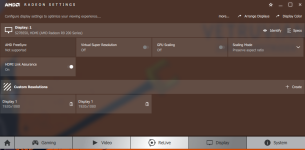
Click on + Create option under the Custom Resolutions section, you will now see a set of different values, one of which is the refresh rate. Here I changed it to 75Hz and then saved it.
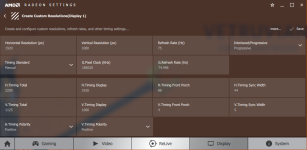
To activate I then right-clicked on the desktop, click Display Settings, Advanced Display settings, Display adapter properties and then the Monitor tab, from there I selected the 75Hz option.
It switched and seemed to be fine. There is a test to make sure you are not having any dropped frames: http://www.testufo.com/#test=framerates (it can be a bit finicky though and moans about browser stuttering but when working right it will give you a valid result if the frames are being rendered smoothly)
After that, go into a game and test out your new refresh rate, see if it feels right.
Apparently some generic Korean brand of monitors can be pushed up from 60Hz to 96Hz - but it is all dependent on your monitor. I've achieved a stable clock up to 75Hz and it does seems to make things smoother - even when not using Vsync in CS:GO where I run the game at about 200FPS.
It simply means to up your monitor's refresh beyond it's default setting (for most standard monitors that 60Hz). These days you can pick up specialised gaming monitors that are rated for 120Hz or 144Hz but they are quite pricey to say the least. With monitor overclocking you can give your current monitor a bit of a boost.
Since I had seen guys mentioning overclocking their monitors (particularly on Carbonite) I thought I may as well give it a try. I recently bought a (3rd hand) Samsung S27B550 from a friend and some diagnostic or other (can't remember what) should my monitor to be capable of 75hz, so I figured I'd give it a go.
I came across this helpful article: https://www.maketecheasier.com/overclock-pc-monitor/
Also, it's good to note the disclaimer on that webpage:
Disclaimer
Overclocking your monitor is not recommended by manufacturers because it can cause it to become unstable. Even though plenty of monitors are capable of being overclocked, it’s still a process that puts more strain on them. I’ll be showing you how to do it safely in a way that’s kept my monitor overclocked and stable for two years now, but you’re still doing this at your own risk.
So I installed the patch for the AMD drivers and the CRU (Custom Resolution Utility) following the instructions and sure enough I managed to bump my refresh rate up from 60Hz to 70Hz - all seemed to be fine. While fiddling around I actually saw that with Radeon Settings it's even simpler to bump up the refresh rate, I may not even have needed to install the patch and CRU (although I think the patch helped ensure the cable bandwidth was unlocked - I'm using HDMI).
How to Overclock Your Monitor using Radeon Settings
In Radeon Settings click on the Display tab and you'll see this menu:
Click on + Create option under the Custom Resolutions section, you will now see a set of different values, one of which is the refresh rate. Here I changed it to 75Hz and then saved it.
To activate I then right-clicked on the desktop, click Display Settings, Advanced Display settings, Display adapter properties and then the Monitor tab, from there I selected the 75Hz option.
It switched and seemed to be fine. There is a test to make sure you are not having any dropped frames: http://www.testufo.com/#test=framerates (it can be a bit finicky though and moans about browser stuttering but when working right it will give you a valid result if the frames are being rendered smoothly)
After that, go into a game and test out your new refresh rate, see if it feels right.
Apparently some generic Korean brand of monitors can be pushed up from 60Hz to 96Hz - but it is all dependent on your monitor. I've achieved a stable clock up to 75Hz and it does seems to make things smoother - even when not using Vsync in CS:GO where I run the game at about 200FPS.


