
You are using an out of date browser. It may not display this or other websites correctly.
You should upgrade or use an alternative browser.
You should upgrade or use an alternative browser.
Slow down wifi speeds
- Thread starter Neonfox
- Start date

PsychoFish
New member
There are many ways to do it, QoS is the obvious, but this depends on the specifics of the router and depends on what they are doing to slow down the link. If it's P2P traffic you should be able to quite easily give P2P traffic the lowest QoS priority and say HTTP traffic (like port 80 and the like) the highest priority. But again, this really depends on what they are doing to slow everything down. If the router supports it I would also suggest installing the DD-WRT firmware on the router to enable advanced configurations.

Mister 44
New member
as far is I know sounds like P2P!! Torrents and stuff like that. So I can control that via the router's wifi settings?
Not wifi settings, specifically. As PsychoFish pointed out, easiest (and most elegant, imho) way is using QoS (quality of service) settings in your router. Look around a bit and you'll find it.
Basically, what this will do is give priority to http (or whatever you choose) and lowest priority to P2P. You will in effect shape them before the ISP gets a chance


ArchieChoke
New member
Not wifi settings, specifically. As PsychoFish pointed out, easiest (and most elegant, imho) way is using QoS (quality of service) settings in your router. Look around a bit and you'll find it.
Basically, what this will do is give priority to http (or whatever you choose) and lowest priority to P2P. You will in effect shape them before the ISP gets a chance
Likely will slow her P2P traffic as well.If she cool wid dat do it, did it for my old man when he was youtubing and I was gaming.
Thanks Bud! Helped alot!!!
- - - Updated - - -
Hahahah! Sounds like something I would have done!
- - - Updated - - -
Likely will slow her P2P traffic as well.If she cool wid dat do it, did it for my old man when he was youtubing and I was gaming.
Hahahah! Sounds like something I would have done!

Cicero
New member
I also share internet with quite a few people. I need to sort out the QoS stuff for gaming too, but have absolutely NO idea how to do it.
I lag like a mofo whenever someone watches a youtube vid and I'm jamming Bf4 on my console.
Anyone keen on helping me out here? Or point me in the right direction
I lag like a mofo whenever someone watches a youtube vid and I'm jamming Bf4 on my console.
Anyone keen on helping me out here? Or point me in the right direction
I also share internet with quite a few people. I need to sort out the QoS stuff for gaming too, but have absolutely NO idea how to do it.
I lag like a mofo whenever someone watches a youtube vid and I'm jamming Bf4 on my console.
Anyone keen on helping me out here? Or point me in the right direction
View attachment 8211
HAHA! Bro I would love to help you however Im sitting in the same boat! Went in there and it look all strange to me! Didnt know what the hell to do so if we can lets get someone who knows that could maybe just help out!!!

PsychoFish
New member
I also share internet with quite a few people. I need to sort out the QoS stuff for gaming too, but have absolutely NO idea how to do it.
I lag like a mofo whenever someone watches a youtube vid and I'm jamming Bf4 on my console.
Anyone keen on helping me out here? Or point me in the right direction
View attachment 8211
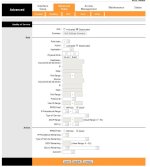
Ok, so this is going to be very generic, but here goes :
- Enable QoS by clicking the "Activated" radio button
- You can leave Rule Index as 1 for the first rule you create and increment the number for every subsequent rule
- Change Active to Activated
- Check the application dropdown to see if your protocol or application appears, else leave it blank
- Check the ports on which you want to apply QoS (Ethernet or WLAN)
- In the destination fields leave everything blank unless you know the specific details (i.e, if you want the rule to apply to outbound HTTP traffic on port 80 enter the port range as 80 to 80)
- Source you can get more specific (I like using MAC addresses here)
- Select the appropriate protocol ID from the list
- Select the appropriate ToS (Type of Service)
Ok, so this is going to be very generic, but here goes :
- Enable QoS by clicking the "Activated" radio button
- You can leave Rule Index as 1 for the first rule you create and increment the number for every subsequent rule
- Change Active to Activated
- Check the application dropdown to see if your protocol or application appears, else leave it blank
- Check the ports on which you want to apply QoS (Ethernet or WLAN)
- In the destination fields leave everything blank unless you know the specific details (i.e, if you want the rule to apply to outbound HTTP traffic on port 80 enter the port range as 80 to 80)
- Source you can get more specific (I like using MAC addresses here)
- Select the appropriate protocol ID from the list
- Select the appropriate ToS (Type of Service)
Will try this out tonight and give feed back!! Thanks