Windows 10 - Tips and Tricks

PsychoFish

New member
Check your default app associations - You might find that some of your default file associations disappeared. Setting these links works the same as ever: right-click on a file, choose Open with then Choose another app; be sure to tick the Always open... box, too.

Stop sharing your wifi - You may have heard about Wi-Fi Sense, a new Windows 10 feature that automatically shares access to your wifi with contacts on Skype, Facebook and Outlook. It can be helpful in certain scenarios but if you’d rather not use it, search for “wi-fi settings” on the taskbar, choose Change Wi-Fi settings, then click Manage Wi-Fi settings.

Prevent buggy/broken/borked drivers/updates from installing and messing up your Windows 10 - https://support.microsoft.com/en-us/kb/3073930

MOre to come...
 
Forgot about the big one for us without uncapped data :

Turn off Windows Update Delivery Optimization (WUDO)

Go to settings
In the Settings Window, you need to click on the "Update & security" option.
Now in the Update & security Window shown below with "Windows Update" highlighted on the left side, click "Advanced options" on the right side.
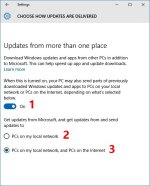
Then in the Advanced options window, click on "Choose how updates are delivered".

Optimize.jpg


Option 1 above is the setting that you need to click to turn off WUDO altogether. If you decide to do this, the other two options will be grayed out. However, if you wish to leave WUDO on, there is some granular control.

You can't turn on option 2 and 3 at the same time. It's one or the other. If you choose option 2, it will allow you to share the update with other machines only on the local network so it won't use any internet bandwidth. This option would in fact reduce your internet bandwidth usage if you own more than one Windows 10 device because you would only need to download the update once over the internet.

By default, Windows 10 comes with option 3 turned on. This shares updates not only with Windows 10 devices on your network but also over the internet. When sharing over the internet, you will help to speed up other people's updates and they will help to speed up yours. It should be noted that any sharing will occur in the background and will use minimal bandwidth. Keep in mind that if you have a metered or capped connection it could cost you depending on your plan so you should set option 1 to off or turn on option 2.
 

Attachments

  • Optimize.jpg
    Optimize.jpg
    48.9 KB · Views: 38
Forgot about the big one for us without uncapped data :

Turn off Windows Update Delivery Optimization (WUDO)

Go to settings
In the Settings Window, you need to click on the "Update & security" option.
Now in the Update & security Window shown below with "Windows Update" highlighted on the left side, click "Advanced options" on the right side.
Then in the Advanced options window, click on "Choose how updates are delivered".

Optimize.jpg


Option 1 above is the setting that you need to click to turn off WUDO altogether. If you decide to do this, the other two options will be grayed out. However, if you wish to leave WUDO on, there is some granular control.

You can't turn on option 2 and 3 at the same time. It's one or the other. If you choose option 2, it will allow you to share the update with other machines only on the local network so it won't use any internet bandwidth. This option would in fact reduce your internet bandwidth usage if you own more than one Windows 10 device because you would only need to download the update once over the internet.

By default, Windows 10 comes with option 3 turned on. This shares updates not only with Windows 10 devices on your network but also over the internet. When sharing over the internet, you will help to speed up other people's updates and they will help to speed up yours. It should be noted that any sharing will occur in the background and will use minimal bandwidth. Keep in mind that if you have a metered or capped connection it could cost you depending on your plan so you should set option 1 to off or turn on option 2.

Thats a nice one to know, fortunately I did "custom install" which sort of ran me through that already. Its actually a very nice feature for multiple win 10 devices....me likey.

But nice post for those who didn't see it :)
 
Forgot about the big one for us without uncapped data :

Turn off Windows Update Delivery Optimization (WUDO)

...

I must say this WUDO is a pretty awesome feature in terms of pushing updates to other PC's on your home network. I had upgraded my desktop with the ISO I had downloaded and was going to do the laptop next (but would need a different ISO with it being home not pro) when I saw that the upgrade was ready to install - I suspect that the laptop pulled the necessary files from my desktop since I hadn't noticed any major downloading going on via the internet.
 
I must say this WUDO is a pretty awesome feature in terms of pushing updates to other PC's on your home network. I had upgraded my desktop with the ISO I had downloaded and was going to do the laptop next (but would need a different ISO with it being home not pro) when I saw that the upgrade was ready to install - I suspect that the laptop pulled the necessary files from my desktop since I hadn't noticed any major downloading going on via the internet.

Yeah, one thing to also keep in mind is that there is no difference in the core OS between "Home", "Professional" and "Enterprise" so 99% of the updates will be exactly the same. Where there will be differences is if there is say a specific (like Bitlocker) update it will not be required for the Home edition.
 
Back
Top