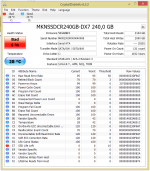
Getting SSD errors, need advice to clone to 2nd drive before it dies

GregRedd

New member
I need help MyGamers! From the hardware gurus especially. (Yeah, I'm looking at you [MENTION=21]The Joker[/MENTION] !)

This message started popping up on my PC this evening:
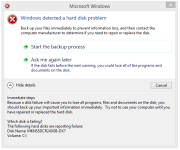
Capture.PNG
It keeps popping up every 10-15 minutes now.
Then notice an ominous yellow ! on the Intel RST icon, and checked in there too:
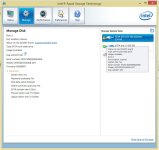
cap2.jpg
The SSD is my boot drive, is about 6 months old, and has "91,6GB free of 206GB" according to the info under my devices.

Assuming that Windows and Intel are not making the error state up just to irritate and annoy me, I want to try an avoid losing my C:/ drive and the use of the machine in the near future.

Rather than wait for the drive to fail completely, I want to be a little proactive about things and try to keep my machine up and running (and myself gaming of course :)) while having the SSD checked and repaired if needed.

So, here's what I'm thinking of doing:
  • Create a new partition on my secondary drive (a 2TB HDD with more than half of it empty atm)
  • Clone a copy of the SSD to the new partition
  • Remove the SSD and send it away for a good solid slapping!
  • Designated the HDD as the primary drive
  • Rename the new partition as C:/ and boot directly to it
  • Continue to function and retain my sanity

Does that sound about right? And please help with suggested tools/programmes - preferably cheap/free - I could use to do this. (I have an old, old, old copy of PartitionMagic, but it won't run on Win8.1 at all.)

Right now I'm too kak scared to do anything else with the machine until I have my backup clone in place, but once I've successfully cloned the C:/ drive I'd be happy to try run a disk recovery/repair tool or two before making the switch, if you have suggestions for that as well.

"Help me Obi Wan Kenobi MyGamers - you're my only hope!"
 
Could it be that the drive has reached its life cycle?
It could well be indeed. In fact, I'm pretty certain that's exactly the issue - I've been a pretty rough user of the slim little thing :)
Sadly Mushkin don't seem to have a tool available to double check the drive state, and the Intel tool I did find doesn't work on this one.

More techie questions:
Once I've created the new partition and cloned over the existing C:/ drive content, how do I set that partition to C:/ to be able to boot from it after switching out the SSD? I can't do it while the SSD is still installed as it is C:/ at the moment?
 
Yeah I would clone the drive immediately.
Swap out shouldn't take long, I just know there is no stock on that particular drive so may have to swap it for something else.
 
Yeah I would clone the drive immediately.
Swap out shouldn't take long, I just know there is no stock on that particular drive so may have to swap it for something else.
No worries, no rush to replace it immediately.

Any suggestions for cloning tool?
 
Well on the plus side...SSDs tend to die more gracefully than HDDs...so no immediate need for panic.

How sure are we those SMART readings are right...the look a little dodgy to me almost like its not reading them right? From memory I do seem to recall that most SSDs predict imminent failure fairly reliably.

Those stats are quite shocking, what could cause the drive to fail so quickly?
Bad drive...SSDs are crazy resilient.
 
Hey mate i literally just copied my SSD as i got a new samsung 850 evo to replace my end of life Adata S511. Download free trial of Novastor. Do a disaster recovery image and save it on other hard drive. That way you have your data and can restore. TO copy between 2 SSDs use samsung migration software. can only copy from a C drive to another. Works well.

AS a heads sup i can tell you that the 850 samsung was the top SSd i could find followed by the crucial mx series. Esquire also has a sale on ADATA drives. I haven't had a problem with them yet.

Also Wootware had my 850 EVO for a price that was +2% Disti prices. that was epic and received my stuff THE NEXT DAY on ECONOMY shipping
 
Those stats are quite shocking, what could cause the drive to fail so quickly?

Well on the plus side...SSDs tend to die more gracefully than HDDs...so no immediate need for panic.

How sure are we those SMART readings are right...the look a little dodgy to me almost like its not reading them right? From memory I do seem to recall that most SSDs predict imminent failure fairly reliably.


Bad drive...SSDs are crazy resilient.

Most likely controller failure.
Although ssd's are generally resilient they have a weakness and they all suffer from it. The controller.
 
Well on the plus side...SSDs tend to die more gracefully than HDDs...so no immediate need for panic.

How sure are we those SMART readings are right...the look a little dodgy to me almost like its not reading them right? From memory I do seem to recall that most SSDs predict imminent failure fairly reliably.


Bad drive...SSDs are crazy resilient.
+1 compared to my stats those of his are scary.

Most likely controller failure.
Although ssd's are generally resilient they have a weakness and they all suffer from it. The controller.
Ah thanks will read up about that when I go for another SSD :)
 
Most likely controller failure.
Although ssd's are generally resilient they have a weakness and they all suffer from it. The controller.
+1 compared to my stats those of his are scary.
In all fairness, the Mushkin has some pretty solid reviews and rating scores, so I never doubted putting it into the rig. Certainly don't regret the buy. Many years of life have taught me that sometimes stuff just goes wrong. And when we're talking tech components, doubly so. Don't take my dodgy SSD as a sign that they're all bad.

I've decided, after sleeping on it, that I'm going to take the opportunity to clean out my drives and do a full, fresh, sparkly clean install onto the HDD. Lemonade from lemons, I tell you :)

Driver files all backed up already, busy copying the Steam Apps folder to an external HD now, then the other stuff - music, movies, etc.- that I want to keep. And then it's off to the cleaners we go!

If [MENTION=21]The Joker[/MENTION] is around: any pointers on what I need to be aware of inside the case and in the BIOS settings when I come to disconnecting the SSD and setting up the HDD as primary? The last time I did anything like this was back in the days of those tiny little master/slave jumper pins on the back of drives... I'm assuming (and my clumsy, fat fingers are hoping!) that we've moved past those days?
 
In all fairness, the Mushkin has some pretty solid reviews and rating scores, so I never doubted putting it into the rig. Certainly don't regret the buy. Many years of life have taught me that sometimes stuff just goes wrong. And when we're talking tech components, doubly so. Don't take my dodgy SSD as a sign that they're all bad.

I've decided, after sleeping on it, that I'm going to take the opportunity to clean out my drives and do a full, fresh, sparkly clean install onto the HDD. Lemonade from lemons, I tell you :)

Driver files all backed up already, busy copying the Steam Apps folder to an external HD now, then the other stuff - music, movies, etc.- that I want to keep. And then it's off to the cleaners we go!

If [MENTION=21]The Joker[/MENTION] is around: any pointers on what I need to be aware of inside the case and in the BIOS settings when I come to disconnecting the SSD and setting up the HDD as primary? The last time I did anything like this was back in the days of those tiny little master/slave jumper pins on the back of drives... I'm assuming (and my clumsy, fat fingers are hoping!) that we've moved past those days?

Nothing really, just set the hdd as your boot drive, unless you still have to install windows, then select your dvd drive as the boot and the hdd as the secondary. Pretty straight forward.
 
Nothing really, just set the hdd as your boot drive, unless you still have to install windows, then select your dvd drive as the boot and the hdd as the secondary. Pretty straight forward.
Thanks bud, all sorted. First attempt brought errors related to the HDD not having the right partition structure or some such, but found and applied a fix easily enough. Am all back up and running well now.
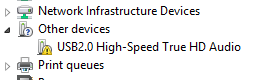
One small error in the Device Manager:
Capture.PNG
Eventually found it's "C-Media MS7926 USB Audio Driver" although I have no idea what it's for. Other than that, all good.
Thanks for all of your (and everyone else's) help!
 
Acronis True Image is quite a handy tool for cloning drives, altho you might need to grab a "loan" copy somewhere hehe. But thats what I've been using to transfer client data when their drives fail. Since its the root drive you'll likely need to restart, fortunately it tells you exactly what to do, and when to remove the old drive (if you plan on using the "new" drive as main boot drive) and does the rest for you. :)
 
I need help MyGamers! From the hardware gurus especially. (Yeah, I'm looking at you [MENTION=21]The Joker[/MENTION] !)

This message started popping up on my PC this evening:
View attachment 16262
It keeps popping up every 10-15 minutes now.
Then notice an ominous yellow ! on the Intel RST icon, and checked in there too:
View attachment 16264
The SSD is my boot drive, is about 6 months old, and has "91,6GB free of 206GB" according to the info under my devices.

Assuming that Windows and Intel are not making the error state up just to irritate and annoy me, I want to try an avoid losing my C:/ drive and the use of the machine in the near future.

Rather than wait for the drive to fail completely, I want to be a little proactive about things and try to keep my machine up and running (and myself gaming of course :)) while having the SSD checked and repaired if needed.

So, here's what I'm thinking of doing:
  • Create a new partition on my secondary drive (a 2TB HDD with more than half of it empty atm)
  • Clone a copy of the SSD to the new partition
  • Remove the SSD and send it away for a good solid slapping!
  • Designated the HDD as the primary drive
  • Rename the new partition as C:/ and boot directly to it
  • Continue to function and retain my sanity

Does that sound about right? And please help with suggested tools/programmes - preferably cheap/free - I could use to do this. (I have an old, old, old copy of PartitionMagic, but it won't run on Win8.1 at all.)

Right now I'm too kak scared to do anything else with the machine until I have my backup clone in place, but once I've successfully cloned the C:/ drive I'd be happy to try run a disk recovery/repair tool or two before making the switch, if you have suggestions for that as well.

"Help me Obi Wan Kenobi MyGamers - you're my only hope!"

At 6 months old and you having these issues, once you are complete with your reinstall send it back to the supplier and I am sure the manufacturer will replace it under warranty as that drive as not even stretched her legs yet
 
Acronis True Image is quite a handy tool for cloning drives, altho you might need to grab a "loan" copy somewhere hehe. But thats what I've been using to transfer client data when their drives fail. Since its the root drive you'll likely need to restart, fortunately it tells you exactly what to do, and when to remove the old drive (if you plan on using the "new" drive as main boot drive) and does the rest for you. :)
Thanks for that [MENTION=12607]mottamort[/MENTION]. Have heard of Acronis before, but never really looked into it. Will definitely do so now. May even not have to "loan" a copy from somewhere either as we've been talking at the office about getting decent backup software in place for a while now. May be able to get them to purchase and "borrow" one of the install licenses. :)
 
Back
Top